
Create Bootable USB
Once we have the ISO file, the next step is to flash the ISO image onto a USB stick to make it bootable. Follow the instructions below:
Methods
Section titled “Methods”- Ventoy is an open source tool to create bootable USB drive for ISO/WIM/IMG/VHD(x)/EFI files.
- With Ventoy, you don’t need to format the disk over and over, you just need to copy the ISO/WIM/IMG/VHD(x)/EFI files to the USB drive and boot them directly.
- First, follow the instructions here: How to make bootable USB drive with Ventoy
- Next, we will copy and paste the ISO file into the Ventoy folder like this:
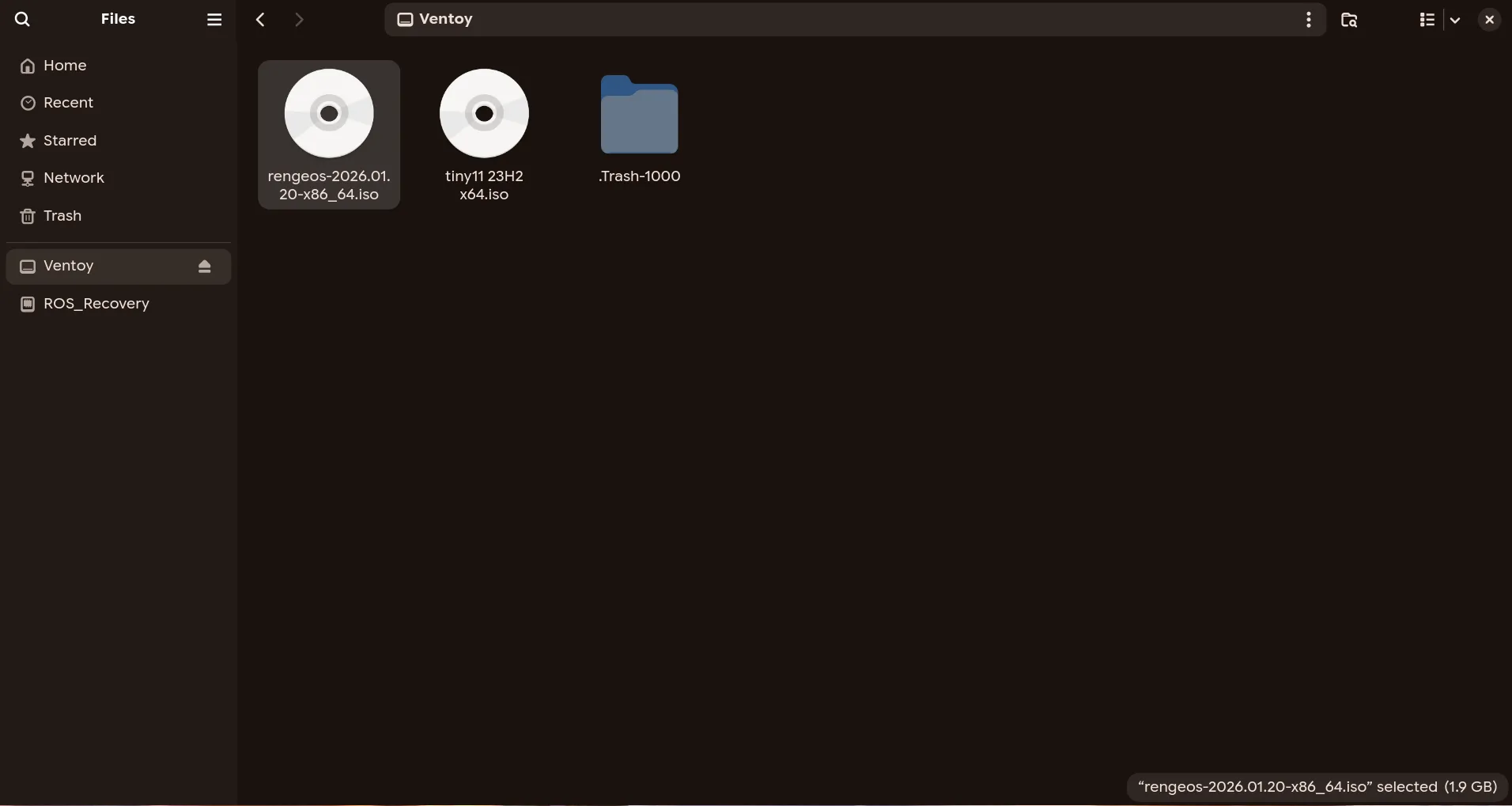
- Once everything is done, we will remove the USB drive, and now you have a bootable USB drive to install RengeOS, which supports both UEFI and Legacy BIOS modes.
- If you’re already using Linux, you can create an RengeOS bootable USB with dd. dd creates both BIOS and UEFI bootable USB Follow the steps below to create a bootable USB with dd :
- Open a terminal and run
lsblkto get the USB info. In my case, it’s /dev/sda.
[rengeos@host ~]$ lsblk
NAME MAJ:MIN RM SIZE RO TYPE MOUNTPOINTSsda 8:0 1 14.7G 0 disk├─sda1 8:1 1 14.6G 0 part└─sda2 8:2 1 32M 0 partzram0 253:0 0 2.8G 0 disk [SWAP]nvme0n1 259:0 0 238.5G 0 disk...- After finding your USB device, Run dd to flash the ISO on USB.
sudo dd bs=4M if=path/to/rengeos.iso of=/dev/sdX status=progress oflag=sync- Make sure you replace path/to/rengeos.iso with the RengeOS ISO path and sdX with your USB device.
- This will create a bootable RengeOS USB for both BIOS and UEFI.